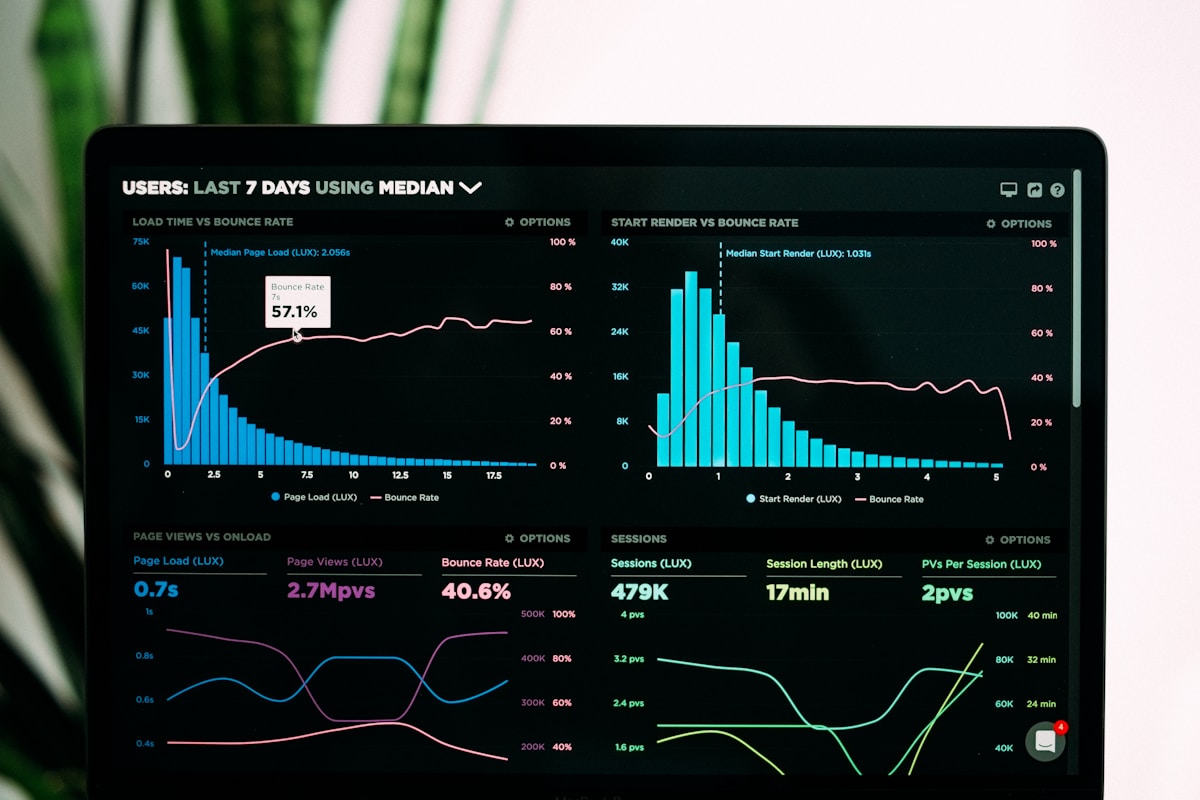
Most infographics aren't bad because of poor design. They're bad because the data isn't interesting, or because the visual form doesn't match the story the data is trying to tell.
AI infographic tools can help with the second problem more than the first. They won't make dull data interesting, but they can take a dataset and surface the best visual format for it whether that's a timeline, a comparison chart, a process flow, or a geographic map faster than any manual design process.
According to the Nielsen Norman Group, users are 30 times more likely to read an infographic than a text article on the same topic. For content marketers and researchers who need their data to actually get read, this matters. The tools to create infographics without a design background have also gotten genuinely good.
Here's an honest look at the four free AI infographic makers that are actually worth using in 2026.
What Makes a Good AI Infographic Tool
Not all infographic tools are the same, and the category includes some meaningfully different products.
Template first tools (Piktochart, Canva) give you pre designed layouts and let you replace content. They're fast and produce professional looking results without design knowledge, but you're constrained by what templates exist.
Data first tools (Datawrapper, Flourish) are built around connecting to data sources and generating charts. They're better for research and journalism use cases where data accuracy and chart type flexibility matter more than visual polish.
AI generation tools (Visme with AI, some Canva features) let you describe what you want and generate a starting layout. These are the newest category and still improving the layouts are often generic, but the starting point saves time.
For most content creators and small businesses, template first tools with good data import capabilities hit the right balance.
Comparison Table: Top Free AI Infographic Makers
| Tool | Data Import | Template Count | Animation | Export Resolution | Free Plan |
|---|---|---|---|---|---|
| Piktochart | CSV/Excel | 900+ | Basic | 1920px PNG | 5 downloads/month |
| Visme | CSV/Excel | 500+ | Yes | 1280px (2x) | 5 downloads/month |
| Canva | Limited | 1,000+ | No (free) | 1080px | Unlimited (watermark on some) |
| Datawrapper | CSV/Excel/JSON | Chart focused | No | SVG/PNG | Unlimited |
Datawrapper is a bit of an outlier in this table it's not a general infographic maker but a chart focused data visualization tool. It belongs here because it's completely free, open source, used by The New York Times and Reuters for data journalism, and excellent for any infographic that is fundamentally about presenting data accurately. For research reports, academic content, or journalism, it's a better choice than the visually focused tools.
The Four Tools in Detail
1. Piktochart
Piktochart has been around since 2012 and has matured into one of the most genuinely usable free infographic tools available. The template library covers the main infographic categories process diagrams, comparison charts, statistical infographics, timeline visualizations, geographic data maps and the templates are legitimately well designed.
The free plan is more limited than it used to be (5 downloads per month vs. unlimited in older versions), but for casual or occasional use it's enough.
The AI feature in Piktochart (introduced in 2024) lets you enter a text description of what you want "a timeline of the history of AI from 1950 to 2025" and it generates a basic layout with placeholder content. The output needs editing but it's a faster starting point than browsing templates.
Data import from CSV works well for chart creation. Upload a spreadsheet, select your columns, choose a chart type, and it renders the chart within the infographic. For content teams producing weekly data driven posts, this is a time saver.
2. Visme
Visme occupies the same space as Piktochart but with stronger animation capabilities and a better free plan for interactive content. If you're creating infographics for presentation slides or embedded web content (where animation plays), Visme is the better choice.
The AI generator in Visme is more capable than most competitors. You can describe a data story, import a dataset, and get a reasonable first draft that includes chart selection based on your data structure. It won't be perfect, but it's a genuinely useful starting point.
The collaboration features on the free plan are limited to one workspace and three projects, which is restrictive for team use. For solo creators or small teams, it's workable.
Visme is also one of the few free tools that handles interactive infographics charts that update on hover, clickable elements, animated data reveals. For web embedding, this produces more engaging content than static PNG exports.
3. Canva
Canva is included here because most people already have it and its infographic templates are extensive. The search for "infographic" in Canva returns over 1,000 templates, covering virtually every category.
The AI capabilities in Canva (Magic Design, Magic Write) help with content generation and layout suggestions but are less developed for data visualization specifically than Piktochart or Visme. Canva doesn't natively import CSV data and generate charts from it on the free plan you have to build charts manually using their chart element tool.
Where Canva wins is convenience and export options. If you're already using Canva for other content and just need a quick infographic, the template library and familiar interface make it the path of least resistance.
The animation features (making elements fade in, slide, etc.) are locked behind Canva Pro, which is a significant limitation for anyone wanting motion in their infographics.
4. Datawrapper
Datawrapper looks different from the other three because it is different. It's not really an "infographic maker" in the design sense it's a data visualization tool that produces chart embeds and static infographic style charts.
But for data accuracy and chart quality, nothing in this list touches it. The charts are publication quality. The free plan is completely unlimited. And the tool handles data correctly it doesn't round numbers oddly or misformat axes the way template first tools sometimes do.
For content creators whose infographics are fundamentally charts with context text, Datawrapper is worth learning. The output is less visually polished than Piktochart but more credible for data heavy content.
Step by Step: From CSV to Published Infographic in Piktochart
Here's the specific workflow for taking a dataset and producing a publishable infographic using Piktochart's free plan:
Step 1: Prepare your data. Clean your CSV file remove blank rows, ensure column headers are clear, and check that numeric columns don't have formatting characters (like currency symbols) that will confuse the import. Export from Excel or Google Sheets as CSV.
Step 2: Choose your template. In Piktochart, browse the infographic templates filtered by your type "statistics" for data heavy content, "timeline" for chronological content, "comparison" for side by side data. Pick a template whose layout matches the structure of your data, not just its visual style.
Step 3: Import your data. Click any chart element in the template, then select "Import Data" and upload your CSV. Piktochart will map your columns to the chart axes. Check the mapping it sometimes guesses wrong on the first try.
Step 4: Edit the chart type if needed. After import, you can switch chart types (bar → line, pie → donut, etc.) without re importing data. This is faster than most people realize test a few chart types to see which one tells your data story most clearly.
Step 5: Replace template text with your own. Update the title, section headers, and any annotation text. Keep text tight infographics work because they're scannable. Every text block should be under 30 words.
Step 6: Adjust colors to match your brand. Piktochart lets you set a color palette that applies across all elements. This is faster than changing elements individually.
Step 7: Add your logo and source attribution. Always cite your data source in small text at the bottom of the infographic. This is a credibility detail that most AI generated infographics miss.
Step 8: Export and publish. Download as PNG for sharing in documents, blog posts, and social media. For web publishing, the PNG at 1920px is enough for most use cases.
Making Your Infographics Actually Get Shared
The most technically perfect infographic that doesn't connect with an audience is a waste of time. A few things that actually affect whether infographics get shared:
One clear insight, not ten mediocre ones. The most shared infographics have a single "wow" data point or comparison at their core. Everything else supports that main insight.
The "so what" is explicit. Data without context is noise. The best infographics tell you what the data means, not just what it is.
Vertical format for social, wide for blog/slides. 1200x628px works for link sharing. Vertical 1080x1920px works for Instagram Stories and Pinterest. Wide 1600x900px works for blog headers and slide decks. Different contexts need different aspect ratios.
Branding is consistent but not overwhelming. A logo in the corner is appropriate. A logo watermarked across the center (as some free tools do) makes the infographic less shareable and looks unprofessional.
For a broader look at visual content tools that complement infographic creation, see the best free AI tools roundup.
Common Mistakes in AI Generated Infographics
The automatic generation features in tools like Piktochart and Visme are useful but not foolproof. Common issues to catch before publishing:
Inappropriate chart types. AI tools sometimes choose a pie chart for time series data or a bar chart for geographic data. Always check that the chart type actually fits your data structure.
Unlabeled axes. Generated charts sometimes skip axis labels or data source citations. Add these manually they're credibility details.
Color accessibility issues. Generated color palettes sometimes use red/green combinations that are invisible to colorblind viewers. Check your infographic with a color blindness simulator (free tools like Coblis exist for this).
Text that's too small to read. Infographics often look fine on a design tool's canvas but become unreadable when exported at web resolution. Always check your export at 100% zoom before publishing.
Using Infographics for Content Marketing ROI
Infographics earn backlinks more reliably than most other content types partly because they're visual (and thus embed easily), partly because well cited infographics become reference material.
According to HubSpot's 2025 Content Marketing Report, infographics earn 3x the social shares of other content types on average. For SEO, the combination of embedded infographic image + surrounding article text creates a content asset that ranks for both the topic and image search.
The free AI infographic tools in this list make this type of content accessible to solo creators and small teams who couldn't previously afford design tools or designers.
For a complete AI content creation toolkit, the free AI tools for freelancers guide shows how infographic tools fit alongside writing, social media, and design tools.
Final Thoughts
Free AI infographic makers have reached a level of quality where the output, with reasonable effort, is genuinely professional. Piktochart is the best overall starting point for most creators. Visme is the choice for interactive or animated content. Datawrapper is the choice for data journalism and research heavy content.
The AI generation features save time at the ideation and layout stage. The human work cleaning data, choosing the right chart type, writing clear annotations, checking accessibility is still necessary. The combination of AI starting points and thoughtful editing produces infographics that are faster to create and genuinely better than most manually designed alternatives.
Further Reading
- Google's Free AI Tools You Probably Don't Know About
- Claude AI Free Tier: Everything You Can Do Without Paying
- Free AI Quote Generators for Social Media Posts (2026)
- Free AI Translation Tools vs Google Translate: Full Comparison
- How to Generate Product Mockups for Free Using AI (2026)
- Leonardo vs Playground vs Ideogram: 2026 Free Tier Comparison